Helping a Parent with Dementia Use a Smartphone Safely
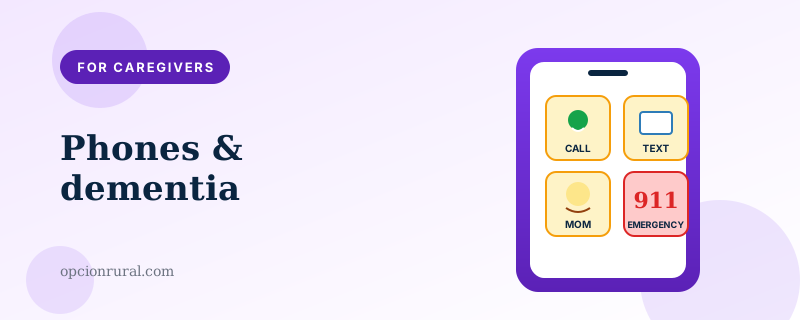
This one is worth writing as straightforwardly as possible. Smartphones in households touched by dementia can be a gift — a connection to family, a familiar voice on a hard afternoon — and they can be a serious source of harm. The unlocked door through which a scammer enters. The device that gets thrown across the room in frustration. The line between the two outcomes is often a few thoughtful settings made by a caregiver who is paying attention.
What follows is the smartphone piece of dementia care, not the whole conversation. The whole conversation involves a multidisciplinary team and decisions specific to the person and the family. This article is what you can do with the phone in your hand.
The early stage: keep it familiar
In the earliest stages of mild cognitive impairment or mild dementia, the right approach is usually to keep the existing phone, the existing home screen, and the existing routines. Change is harder for the patient than it is for you. A new phone introduced now becomes a frustrating second learning curve on top of the underlying condition.
What does change:
The home screen gets simpler. Remove apps the person doesn't use. Move the three or four they do use — phone, messages, camera, weather — to the first home screen in obvious positions. Delete or hide the rest. iPhone lets you hide whole pages of apps; Android lets you remove them from the home screen without uninstalling.
Notifications get aggressively quieted. Most notifications are confusing or anxiety-producing for someone whose ability to interpret context is starting to fade. Only calls, text messages from family, and medication reminders should make the phone buzz.
Two-factor authentication for banking gets moved to a co-signer's phone, with the patient's consent. We covered the general 2FA setup in our 2FA piece; the same accounts that benefit from 2FA in healthy adults are the ones most often targeted in cognitive decline.
The middle stage: simplify deliberately
When the person is forgetting how to navigate the home screen, missing scheduled medications, or struggling to recognize whether an incoming call is from someone they know, a different approach is needed.
The first option worth considering is to keep the same phone but turn on its "Assistive Access" mode (iPhone) or "Simple Mode" / "Easy Mode" (Samsung Android). These modes replace the standard home screen with a much larger-button, fewer-option layout. They are not the same as the dementia-specific phones sold separately; they're built-in.
iPhone Assistive Access: Settings → Accessibility → Assistive Access → Set Up. You'll choose which apps the person can use, what they look like, and how the home screen is organized. The setup interview asks a series of questions about the person's specific needs. Spend time on it.
Samsung Easy Mode: Settings → Display → Easy Mode → on. Less customizable than Apple's but a meaningful improvement over the default for many users.
Both modes can be turned off, returning to the standard interface, with the device password — useful for when family members borrow the phone, less useful for keeping the person inside the simplified mode against their will. The simplified mode works because the person chooses it together with you; if they fight it, that resistance is information about what they're not ready for.
The dementia-specific phones
Several companies sell phones designed specifically for dementia care. The two most common:
RAZ Mobility's RAZ Memory Cell Phone. Looks like a regular smartphone, runs a custom interface with very large photo-buttons of family members instead of contact names. The person taps Mom's photo to call Mom. The phone itself locks out the standard Android features entirely. Around $300 plus a service plan.
The advantage is the photo-button approach, which is genuinely useful for patients who no longer reliably recognize names but still recognize faces. The disadvantage is the cost and the fact that it commits the family to that specific platform.
Most families do better trying the built-in modes on the existing phone first. If those don't work, the dedicated phones become worth the price.
Settings that prevent the worst outcomes
Three specific configurations consistently prevent real harm. None requires the dementia-specific hardware.
Outgoing call restrictions. Both iPhone and Android can be configured to allow calls only to a specific list of contacts. iPhone: Settings → Screen Time → Content & Privacy Restrictions → Allowed Contacts. Android (varies by manufacturer): typically under Digital Wellbeing → Parental Controls, or via the Google Family Link app.
This prevents the person from calling — or being convinced to call — an unknown number. It is the single most effective protection against scam targeting.
It also prevents 911 calls from the lock screen unless you specifically allow them. Make sure 911 is on the allowed list.
App-store restrictions. Disable the person's ability to install new apps. iPhone: Settings → Screen Time → Content & Privacy Restrictions → iTunes & App Store Purchases → Installing Apps → Don't Allow. Android equivalent through Family Link.
This prevents the well-intentioned download of a free game that turns out to be predatory, the remote-access tools that scammers walk people through installing, and the dozens of other scenarios where new apps cause harm.
Purchase confirmation. Require a password for every purchase, every time. Don't rely on Face ID or fingerprint, which can be triggered with help. iPhone: Settings → Screen Time → Content & Privacy Restrictions → iTunes & App Store Purchases → Require Password → Always Require. Apply the same logic to Apple Pay (Settings → Wallet & Apple Pay → Require Face ID → off, then set up to require the device PIN every time).
What to tell the person
If the person you're caring for is at all able to be part of these decisions, include them. "I want to make sure the phone is safe for you, and that's why I'm setting this up. The phone will still call me, your sister, the kids, and 911. It won't accidentally let someone call you and trick you."
Most people in this situation are relieved by that framing. They know the risks are there. They are grateful for the protection. The conversation is harder in the abstract than it usually is in the kitchen.
Location sharing — and the consent question
Knowing where the person is, particularly if they sometimes walk away from home, can save lives. Both iPhone and Android can share location with a designated family member continuously.
The clinical and ethical considerations here are real. Continuous location tracking of an adult, even an adult with dementia, is a serious change to that person's privacy. The decision about whether and how to do it usually belongs in a conversation that includes the patient (when they have capacity), the medical team, and a clear discussion of the alternatives.
When it is the right answer, the practical setup is: iPhone Find My → Share My Location → with the family caregiver, indefinitely. Or Google Maps → location sharing → with the family member.
This article won't go further than that, because the right answer is case-by-case. Talk to the team.
One last thing
The phone is a tool, not a substitute for the people in the person's life. The most reliable protection against the worst smartphone outcomes in dementia is a family member checking in often enough to notice changes — in the person, in the phone bill, in the bank statements. Settings help. Devices help. Apps help. People help most.
If you're reading this in the early stages of a parent's diagnosis and feeling overwhelmed, please know that you don't have to solve everything this week. Start with the small things: simplify the home screen, quiet the notifications, restrict the App Store. Each of these takes ten minutes and reduces the harm a poorly-targeted afternoon can do. The rest, you'll figure out as you go.
Written by Justin Lowen. Last verified 12 June 2026. Clinical guidance on dementia care belongs with the patient's medical team.